
Temporary voice channels
A briefing, two combat squads and a logistics team: create the voice channels your group needs, then let PICKET remove them once they stay empty. An occupied channel remains available even after the person who requested it leaves.
An officer prepares templates with a destination category, channel name, capacity and cleanup delay. Members then use /voice create to choose templates and quantities, build a private queue and deploy everything together. The module is enabled by default; no dedicated request channel is needed.
Who can do what?
The levels below are the PICKET access levels configured for your server, not your in-game ranks.
| Access | What you can do |
|---|---|
| Member | Prepare a queue and deploy one or several voice channels from the available templates. |
| Officer | Everything a member can do, plus manage templates, set the deployment limit, inspect open channels and request their removal when empty. Enable or disable the module in /picket settings. |
| Discord administrator | Everything an officer can do, plus manage access roles and export or delete server data. |
By default, every server member can request channels and administrators can configure templates. An administrator can delegate configuration to an officer role in /picket settings → Permissions. See the permissions guide for details.
Your first voice channels
Suppose your group needs two combat channels and one logistics channel for an operation.
- An officer prepares the templates: open
/voice settings, then Add. Choose theOperationscategory, then enterCombatas the channel name, set capacity to10people and the delay to15 min. Create aLogisticstemplate in the same way. - A member runs
/voice createfrom any server channel. The panel is private and its queue starts empty. - Choose
Combat, then quantity2and click Add × 2. Two channels enter the queue; nothing is created yet. - Choose
Logistics, then quantity1and click Add × 1. The queue now contains three channels across the two templates. - Click Deploy 3 channels. Deployment status appears; Refresh shows results and links to created channels. Channel names receive a number automatically.
The bot needs View Channel and Manage Channels in the chosen categories and the channels it creates. Channels inherit category permissions. On an existing installation, an administrator must grant Manage Channels to the bot role if needed; changing application installation permissions does not update existing roles.
This feature does not require Connect, Speak, Move Members, View Audit Log or Administrator. PICKET does not join the call or receive its audio.
Prepare channels for your group
Build the queue
The panel shows available templates, the quantity to add and your current queue. Channels are created only after you click Deploy: prepare a single entry or combine several templates. The quantity selector offers 1 to 6 at most, even when a deployment can contain 10 channels in total. Choices shrink to fit the slots left in your queue and on the server: with two slots left, only 1 and 2 are offered. Adding is disabled when no slots remain.
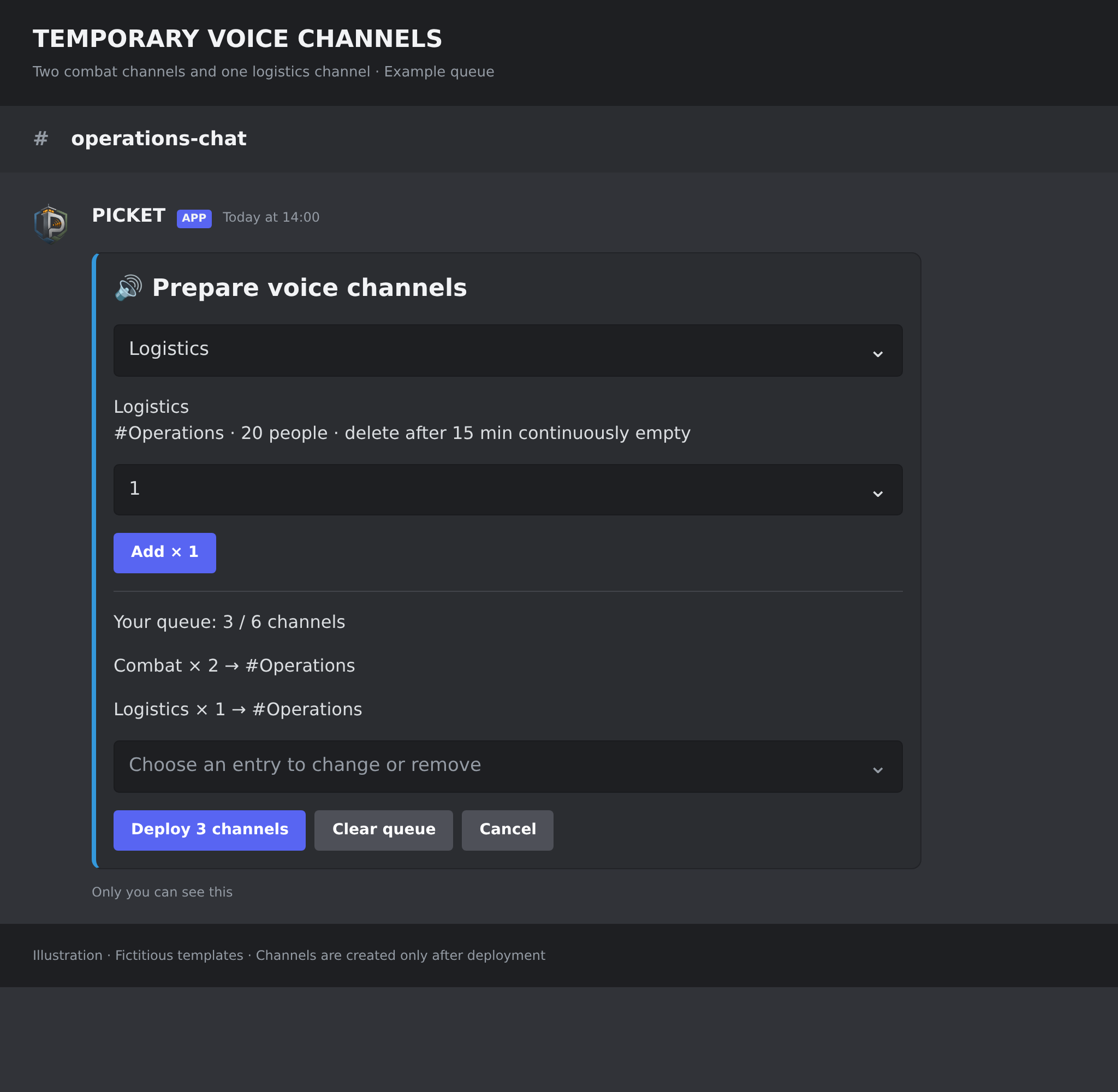
Illustration using the bot's English text and fictitious templates. The queue contains three channels; they have not been created yet. Layout may vary with your Discord client.
| You want to… | Do this |
|---|---|
| Request one channel | Choose a template, keep quantity 1, add it to the queue and deploy. |
| Combine several templates | Choose each template and quantity, then add them before deploying. |
| Increase an existing entry | Add the same template again: its quantity increases. |
| Change or remove an entry | Select it under Choose an entry to change or remove, then enter the new quantity. 0 removes that entry. |
| Start preparation again | Choose Clear queue. Cancel abandons preparation and removes its private message without creating channels. |
Only destinations you can view and join are offered. The panel belongs to the person who opens it and expires after 15 minutes of inactivity. Run /voice create again to start over. An old button cannot repeat a confirmed deployment.
Find your created channels
After confirmation, Refresh shows each channel as queued, creating, open, not created or creation to verify with an officer. Created channels include a link to join them. New deployment starts another empty queue.
Within each category, PICKET channels are grouped alphabetically by template, then by number. This applies to the first deployment and later additions: with Combat · 01, Combat · 02, Combat · 03 and Logi · 01 already present, a new Combat · 04 is placed before Logi · 01. Temporary positioning failures are retried without recreating the channels. New channels use the smallest available number: if Combat · 02 was removed while Combat · 01 and Combat · 03 remain, the next channel is Combat · 02. Pending or uncertain creations keep their number reserved.
If an officer changes a template while you are preparing your queue, or your access changes, PICKET blocks confirmation: refresh the panel and rebuild the affected entries.
Let channels clean themselves up
A new channel that nobody joins starts its cleanup delay at creation. Any occupant, including a bot, cancels the countdown. The last departure starts a full new delay. With a 15-minute setting, joining after 10 empty minutes therefore cancels those 10 elapsed minutes.
The creator leaving does not remove a channel occupied by others. After a bot interruption, an empty channel gets a full new delay if tracking continuity cannot be established: cleanup may then take longer.
Adapt channels to your organisation
An officer opens /voice settings. This private panel brings together templates, the limit per request and tracked channels. Use PICKET settings to return to the server's general configuration.
| Screen or action | What you can configure |
|---|---|
| Home | Check templates, the deployment limit and open or reserved channel count. Select a template to see its options. |
| Add / Edit / Duplicate | Fill in four fields in this order: destination category, channel name, capacity and cleanup delay. The channel name also names the template offered to members. Category and delay use selectors. |
| Remove | Remove the template after confirmation. Existing channels keep their settings and cleanup schedule. |
| Deployment limit (1–10) | Choose how many channels a person can deploy in one request. |
| Open channels | Check tracked channels and their occupants. Select a channel, then Delete if empty to request early removal. |
Template changes apply to future creations; they do not change channels already open. Early removal is refused while a channel has any occupants.
Available settings and defaults
| Setting | Choices | Default |
|---|---|---|
| Destination category | An accessible Discord category. | Choose one |
| Channel and template name | Unique within the server, up to 90 characters; PICKET appends a number to created channels. | Required |
| Capacity | From 1 to 99 people. 0 and unlimited capacity are refused. | 99 |
| Continuously empty delay before removal | 1, 5, 10, 15, 20 or 30 minutes. | 15 min |
| Channels per deployment, across all templates | From 1 to 10. | 6 |
To stop new requests, use /picket settings. Queued creations are cancelled; existing channels keep their automatic cleanup. Templates remain saved for a later reactivation.
Limits
| Limit | Value |
|---|---|
| Templates per server, including duplicates | 10 |
| Channels per deployment, across all templates | 6 by default; adjustable up to 10 |
| Open or reserved channels on the server | 15, shared by all members' requests |
| Capacity per channel | From 1 to 99 people |
| Cleanup delay | At most 30 minutes after the last departure, except when tracking is interrupted |
| Private preparation lifetime | 15 minutes of inactivity |
Two Combat channels and one Logistics channel count as three, both in the request and in the server limit. Queued, creating and uncertain channels also reserve a slot. Concurrent requests share this limit; a request that exceeds the remaining slots is refused before creation is queued.
If something goes wrong
| Situation | What to do |
|---|---|
| No templates are offered | Ask an officer to create a template, then check that you can view and join its destination and that the bot can manage it. |
| A command or button is refused | Check your PICKET roles, whether the module is enabled and destination permissions in Discord. |
| Preparation expired or changed | Run /voice create again, or reopen settings. If a template changed, rebuild the affected entries. |
| The server reached its limit | Wait for empty channels to clean up, or ask an officer to inspect Open channels. Reserved creations count too. A refused deployment shows the maximum (15), the current count, the complete requested quantity and how many channels exceed the limit. |
| An empty channel is still present | Check that its delay elapsed and no bot is connected. Outages or lost permissions suspend cleanup; recovery may grant a full new delay. |
| A channel was deleted manually | PICKET releases its slot after confirming its absence. No database intervention is needed. |
| A creation needs verification | An officer checks channels in Discord, then can select the entry in Open channels and Close tracking after confirmation. This releases the reservation without deleting a Discord channel. |
How PICKET recovers after a restart
Confirmed requests and channel tracking are persistent. After restarting, PICKET checks known channels and rebuilds occupancy before cleanup. A permission error is not treated as an absent channel.
A creation may succeed at Discord just before PICKET loses its response and cannot save the channel identifier. It is then marked to verify, without an automatic retry that could create a duplicate. PICKET does not identify a channel by name alone and does not access Discord's audit log.
Discord offers no atomic “delete only if empty” API. PICKET rechecks occupancy immediately before deletion; an exactly simultaneous join remains a possible platform race.
What PICKET stores
PICKET stores templates and their settings, private preparations, confirmed requests and the information needed for cleanup: channel identifiers, current occupants, deadlines and last verifications. This tracking works independently of voice statistics, even when statistics collection is disabled. It adds no movement history and contains no audio.
Preparations expire after 15 minutes of inactivity. Completed operational records become eligible for cleanup after 24 hours; uncertain creations keep their reservation until resolved. Templates remain saved until removed or until server data is deleted.
An administrator can export server data or request its deletion in /picket settings → Data. For this feature, the export includes only current template names. Template options, preparations, deployments, presence and verification timestamps are excluded: the export explains which templates are saved and cannot restore them. All module data follows the server deletion lifecycle. See the Privacy Policy for the general retention framework.