
Timers
A stockpile to renew, a ship to monitor, a field whose last refresh you want to track: timers help your group keep an eye on shared resources. Everyone can see deadlines in Discord, reset a timer after an intervention and receive an alert before it expires.
Create a board in a channel, then let members add their timers. PICKET groups resources by location and adds messages as the board grows. You do not need to manage pages yourself.
Who can do what?
These are PICKET access levels configured for your server, rather than your ranks in the game.
| Access | What you can do |
|---|---|
| Member | Add, refresh and strike timers, and acknowledge alerts. |
| Officer | Everything a member can do, plus create, configure, clean up and repair boards. Enable or disable Timers in /picket settings. |
| Discord administrator | Everything an officer can do, plus manage access roles and export or delete server data. |
By default, all server members can use timers, and administrators can create boards. An administrator can adjust access in /picket settings → Permissions. See the permissions guide for details.
Your first timer
Suppose your group needs to renew a stockpile regularly.
- An officer prepares the channel: run
/timers createin#timers. The board appears in that channel. - A member adds the resource: run
/timers add, choose Stockpile and select a location from the suggestions. The optionalownersets a person responsible for it; otherwise, that person is you. - Fill in the form: for example, name
North depot, code123456, duration50h. Submit it: the timer appears on the board with its owner and deadline. - After renewing the stockpile in the game, click the letter corresponding to its timer. The countdown starts again for 50 hours.
The bot needs View Channel, Send Messages (or Send Messages in Threads) and Embed Links. PICKET points out a missing permission when you create the board.
Keeping track of resources
Reading the board
Timers are grouped by region and town. Each resource shows its name, code where applicable, deadline or elapsed time, and owner.
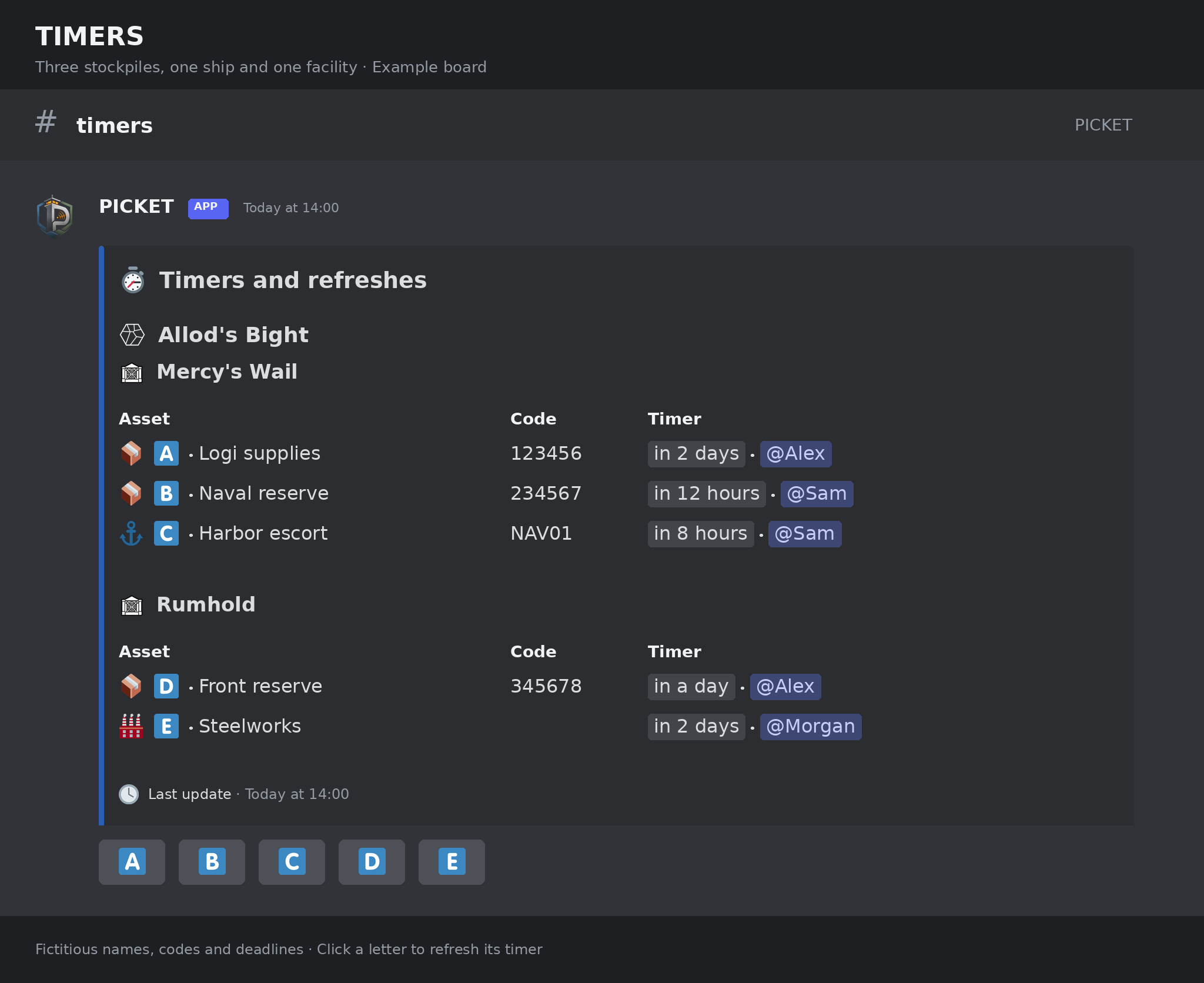
Illustration using the bot's English layout. The board contains three stockpiles, a ship and a facility. Names, owners, codes and deadlines are fictitious; the layout and relative times may vary with your Discord client.
The letter 🇦 identifies the timer's button. Letters start again at A on each message: use the button underneath the message containing your resource. The first message shows when the board was updated. An expired timer stays visible with a past deadline; a struck timer is crossed out and no longer has a button.
Updating or removing a resource
| You want to… | Do this |
|---|---|
| Record a renewal in the game | Click its letter button: the countdown restarts for its configured duration. For a field, elapsed time goes back to zero. |
| Mark a resource as no longer needing attention | Run /timers strike and choose the suggested timer. It stays visible, crossed out. |
| Remove struck timers from the board | An officer runs /timers cleanup. |
| Start tracking a struck resource again | Add it with the same type, name, location and code: PICKET reactivates its timer. |
An addition identical to an already active timer is refused: use its button to refresh it. Adding a struck timer reactivates it with the same identifier. PICKET compares type, name (case insensitive), location and code. Changing the owner or duration does not make it a different resource. An expired timer remains active until it is struck or purged.
By default, members can refresh and strike other members' timers. An officer can reserve these two actions for the timer's owner and officers in /timers settings → Board management.
Receiving and acknowledging alerts
By default, PICKET posts a silent alert 2 hours before the deadline, in the board's channel. Click ✅ to acknowledge it and remove the alert message. This does not refresh or strike the timer.
The alert also disappears when the timer is refreshed, struck or expired. A refresh prepares alerts for the next deadline. After an interruption, PICKET resumes with the nearest alert threshold already reached, rather than sending a backlog of old alerts.
To notify a group, an officer can configure roles with /timers settings. The role must be mentionable, or the bot must have Discord's Mention @everyone, @here, and All Roles permission.
Adapting timers to your group
Choosing a type and duration
| Resource | What the timer measures | Code | Suggested duration |
|---|---|---|---|
| Stockpile | Time remaining until the deadline | 6 digits, required | 50 h |
| Facility | Time remaining until the deadline | None | 50 h |
| Field | Time since the last refresh | None | No countdown |
| Ship, tank or train | Time remaining until the deadline | 3 to 6 letters or digits, optional | 48 h |
The suggested durations are defaults: adjust them to your needs. Enter hours (50, 1.5) or combine units (90m, 2h30m, 1d 12h). For the location, start typing a town or region, then select a suggestion: PICKET does not guess a location from free text.
Configuring a board
An officer runs /timers settings in the board's channel, with no arguments. PICKET opens a private panel: choose a section, click a button or fill in a form. Every change takes effect immediately and updates the same panel. These settings apply to this board, rather than every board on the server.
| Screen | What you can configure |
|---|---|
| Home | View the active timer count, main settings and display status. |
| 🔔 Alerts | Enable or disable alerts, choose times before the deadline, silent mode and roles to notify. |
| 🛡️ Board management | Choose who can strike and refresh, and configure automatic cleanup. |
To notify a role, choose it in the Alerts screen's selector. Add or remove roles one at a time, or clear them all. Adding @everyone requires confirmation. The Edit button opens a prefilled form for alert thresholds or cleanup delay: you do not need to know any parameter names.
Disabling alerts requires confirmation. For automatic cleanup, a new non-zero delay also requires confirmation: struck or expired timers already past that delay may be deleted immediately.
Available settings and defaults
| Setting | Choices | Default |
|---|---|---|
| Alerts | Enabled or disabled. | Enabled |
| Time before the deadline | For example 6h, 2h, 30m: up to 4 thresholds, from 5 minutes to 7 days. | 2h |
| Roles to notify | Up to 5 roles. | None |
| Notifications | Silent mode or push notifications. | Silent |
| Who can strike and refresh | All members, or the owner and officers only. | All members |
| Automatic cleanup | After 1 to 720 hours; 0 disables it. | 24 h |
Region and town icons use PICKET's icons, and the limit is fixed at 50 active timers per board. You can enable reset for each new war in the board management section. It is off by default. The war-log collector triggers it independently of subscriptions, preserving timers created after the war began.
The panel is reserved for the person who opens it and expires after 15 minutes without an update. Run /timers settings again to open a new one. Access is checked again for every interaction. During transition, a command with old arguments opens this panel without applying its arguments.
To enable or disable the entire Timers module, use /picket settings. Disabling it suspends timer interactions and background processing while keeping the data.
Limits
A board is the collection of timers in one channel; a message is a page of that board.
| Limit | Value |
|---|---|
| Boards per server | 10 |
| Boards per channel | 1 |
| Active timers per board, across all pages | 50, fixed limit |
| Active timers per message | At most 25; fewer if the content length requires it |
| Messages per board | Added and removed automatically to fit the content, keeping at least one message |
| Timer name | 15 characters |
| Countdown duration | From 1 minute to 30 days |
26 active timers take at least two messages, but still count as one board in one channel. The server limit of 10 boards therefore allows up to 10 timer channels, each with several messages.
A struck timer frees a place in the active quota. An expired timer still counts until it is struck or purged. If an older board already has more than 50 active timers, they are kept, but adding more is blocked until the count falls below 50.
By default, struck timers are deleted 24 hours after being struck; expired timers, 24 hours after their deadline. An empty board with no changes for 30 days is also deleted. A board that still contains a timer is kept.
If something goes wrong
| Situation | What to do |
|---|---|
| A command or button is refused | Check your PICKET roles, whether Timers is enabled and Discord permissions. If changes are restricted to owners, also check the timer's owner. Access is checked again for every action. |
| You cannot add another timer | The limit is 50 active timers. Strike resources you no longer need to free a place. Expired timers still count until struck or purged. |
| The location is refused | Try adding again and select a town or region suggestion. |
| A board message was deleted | The next change republishes it; an officer can also run /timers repair. |
| PICKET says the display will update later | Your change is saved. Check the bot's permissions if needed; PICKET retries automatically. |
| The channel was deleted | Its board is disabled and its data kept. An officer can create a board in another channel. |
| An old empty board disappeared | After 30 days without activity, it is deleted. Run /timers create to make a new one. |
What PICKET stores
Timers are saved in PICKET's database so they keep working after a restart and their display can be rebuilt. This includes server, channel and message identifiers, board settings, tracked resources (type, name, code, location, owner, start time, duration and state) and the information needed for alerts.
PICKET also keeps an action history and server-related application logs, including dates, the identifiers of the people involved and action details. Timer names and codes may appear in that history. Database logs have a 30-day retention period; timer data is not subject to this logging period and follows the separate deletion lifecycle described above. Data from a board disabled after its channel is deleted is kept until the server's data is deleted.
Names and codes are visible to people who can read the board's channel. If an audit channel is configured, timer creation, reactivation, striking, removal and alert acknowledgements may also be reported there with available action details. Refreshes are not posted in that channel. The 30-day log retention does not delete audit messages already posted in Discord.
An administrator can export stored data or request its deletion in /picket settings → Data. Deleting the bot's data does not automatically delete Discord messages. See the Privacy Policy for the general retention policy.